ShapeSync
Chapter 9: Advanced VRM Integration (Expression and Physics Configuration and Verification)
← Back to Tutorial Index | ← Chapter 8: Advanced Outfit Registration and Figure Mask (Hiding Base Mesh and Correcting Poke)
This chapter explains the procedure for using ShapeSync Asset’s VRM Integration features to configure Expression (facial expressions) and Physics (secondary motion / SpringBone for hair and outfits) for Figure and Outfits, and verifying their operation after Generate.
[!NOTE] About the Working Environment for This Chapter: VRoid Studio operations are not performed in this chapter. All operations are carried out within the Unity Editor and ShapeSync Editor.
1. Introduction (Overview of VRM Integration and Prerequisites)
1.1 Verifying Prerequisites
To use VRM integration features, the following packages and scripting define symbol settings introduced in Chapter 1 installation procedures are required.
- VRM-Related Packages:
com.vrmc.gltf(0.131.1)com.vrmc.vrm(0.131.1)- ShapeSync VRM Integration Companion
- Scripting Define Symbols:
SHAPESYNC_USE_UNIVRMmust be added under Scripting Define Symbols inEdit > Project Settings > Player > Other Settings, and applied viaApply.
1.2 Skipping VRM Integration
- When Not Using VRM Integration: If avatar facial expressions in VRM format or SpringBone secondary motion integration are not required, you can proceed without adding UniVRM / Companion packages or define symbols, and skip this chapter to proceed directly to Chapter 10 onwards (Chapter 10 onwards can proceed without VRM integration).
- Important Considerations When Enabling VRM Integration:
A Database in which VRM settings have been saved by executing this chapter must subsequently be handled in an environment where
SHAPESYNC_USE_UNIVRMis enabled. Please decide whether to use VRM integration before saving settings to the Database.
2. Configuring Expression and Physics Reference for Figure
In ShapeSync Editor, configure reference VRMs for facial expressions and secondary motion on the Figure (base body) side.
- From the top menu in Unity Editor, open Tools > zgock > ShapeSync > ShapeSync Editor.
- Select
Figure > VRMfrom the left TreeView. - Configure the
Expression Reference VRMsection.- In the
BasicFemalerow (Base)Prefab input, drag and dropBasicFemale.vrmfrom the Project window. - In the
SampleIrow (FBM)Prefab input, drag and dropSampleI.vrmfrom the Project window.[!IMPORTANT] For Expression Reference, make sure to specify all registered Base and FBM rows without omission (in this setup, the 2 rows
BasicFemaleandSampleI).
- In the
- Configure the
Physics Reference VRMsection.- In
Prefab input, drag and dropHair1BasicFemale.vrmfrom the Project window.[!NOTE] The Physics Reference on the Figure side is arbitrary as long as it is a “VRM containing secondary motion (SpringBone)”. There is no special restriction in selecting
Hair1BasicFemale.vrmin this procedure, and specifyingDress1BasicFemale.vrmwill operate identically.
- In
- Click the
Save to Databasebutton at the bottom of the screen to save.
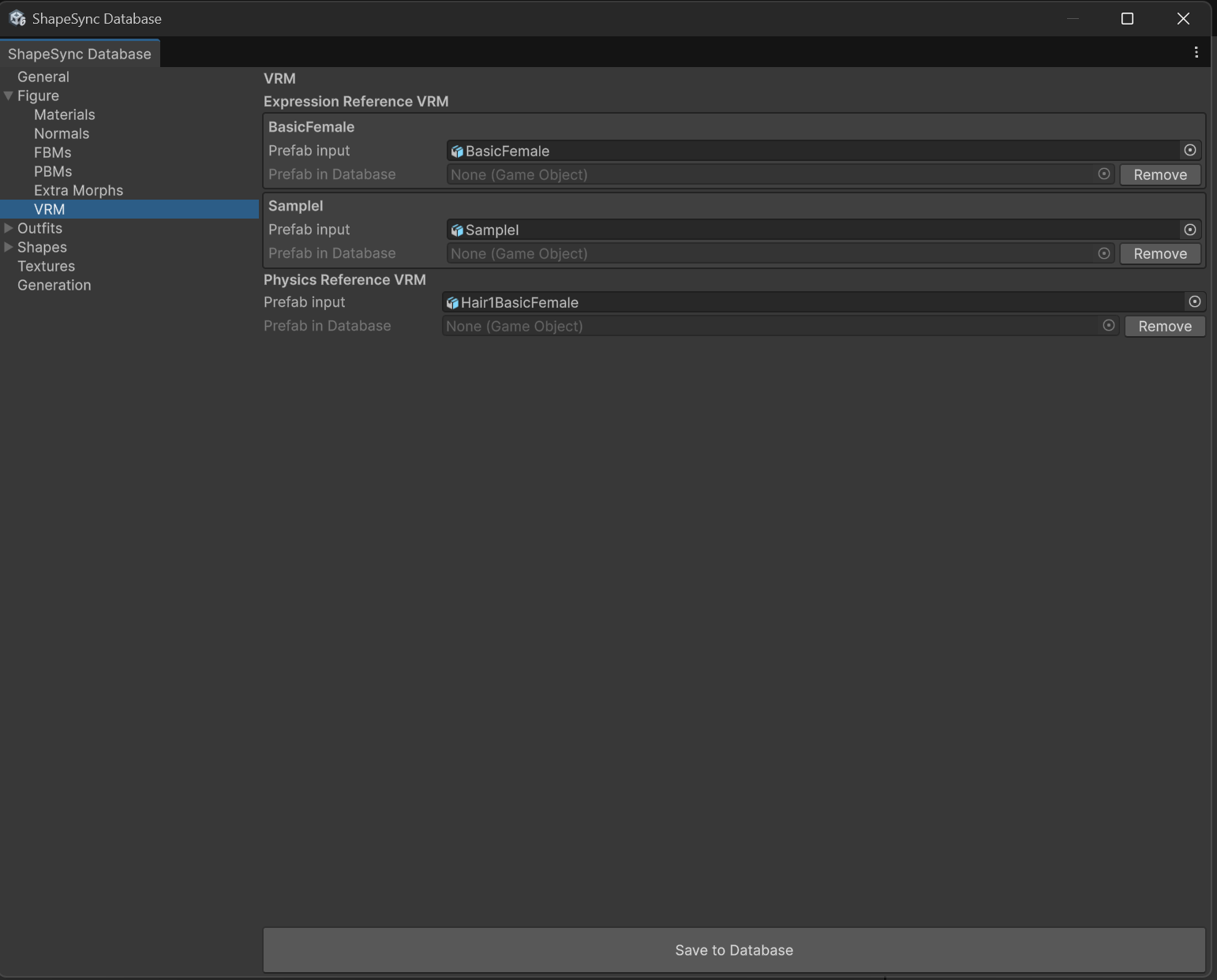 ▲Figure 9-1: Configuring 2 Expression References and 1 Physics Reference in Figure > VRM, and saving with Save to Database
3. Configuring Physics Reference for Outfits (Hair1 / Dress1)
Configure the outfit-specific secondary motion reference VRMs for the hairstyle (Hair1) and dress (Dress1) Outfits.
3.1 Physics Reference Configuration for Hair1
- Select
Outfits > Mesh Outfits > Hair1from the left TreeView, and open theVRMsection in the details pane. - In
Prefab inputofPhysics Reference VRM, drag and dropHair1BasicFemale.vrmfrom the Project window. - Click the
Save to Databasebutton at the bottom of the screen to save.
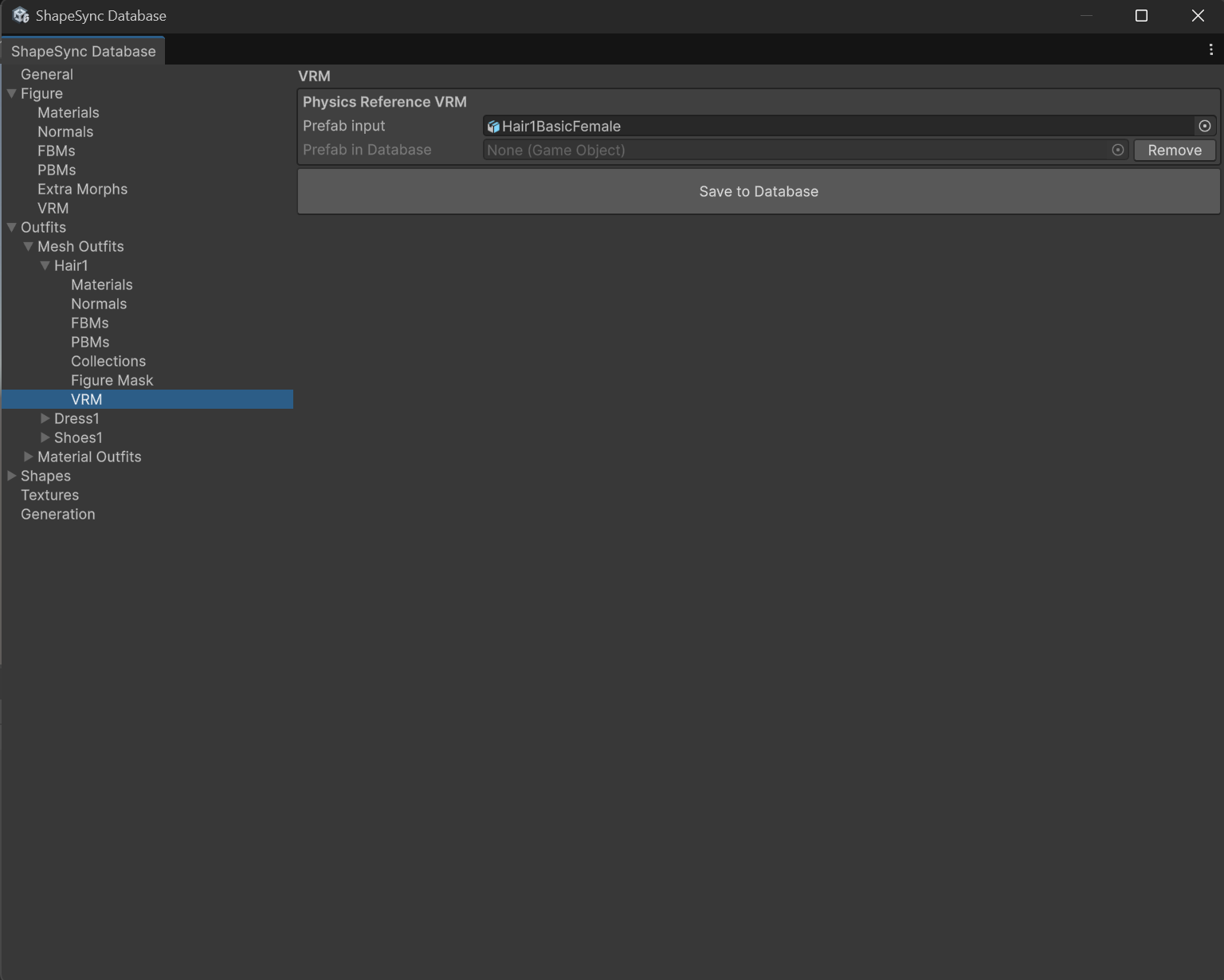 ▲Figure 9-2: Specifying Hair1BasicFemale in Physics Reference VRM under Outfits > Mesh Outfits > Hair1 > VRM and saving
3.2 Physics Reference Configuration for Dress1
- Select
Outfits > Mesh Outfits > Dress1from the left TreeView, and open theVRMsection in the details pane. - In
Prefab inputofPhysics Reference VRM, drag and dropDress1BasicFemale.vrmfrom the Project window. - Click the
Save to Databasebutton at the bottom of the screen to save.
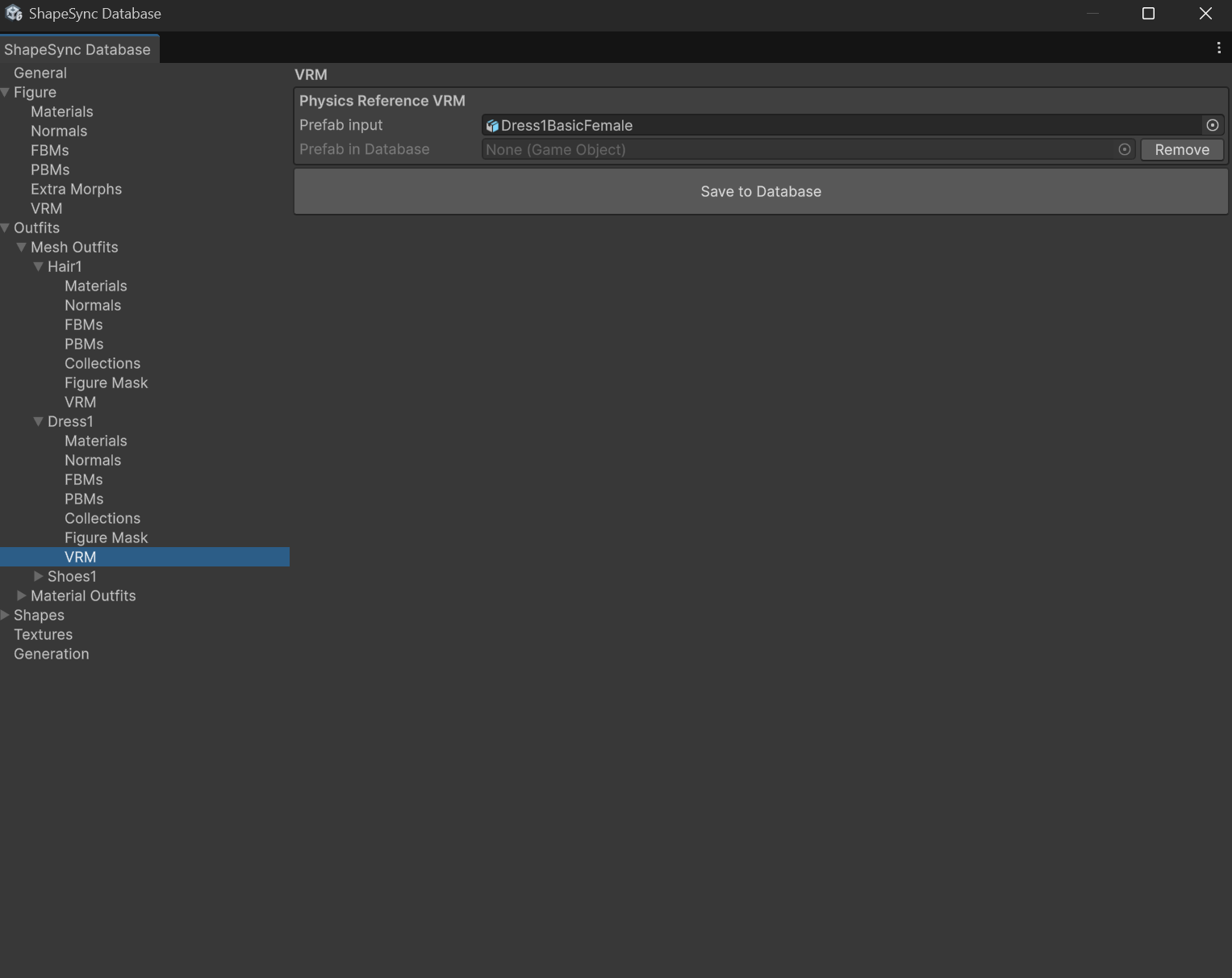 ▲Figure 9-3: Specifying Dress1BasicFemale in Physics Reference VRM under Outfits > Mesh Outfits > Dress1 > VRM and saving
4. Executing Generate in Generation (Expression Bake / Physics Transfer)
To reflect the configured VRM integration settings, execute generation of Figure and Outfits.
- Select the
Generationsection from the left TreeView in ShapeSync Editor. - Verify each output setting (Output Root:
Assets/ShapeSync/Generated, VRM Relative Path default:VRM/). - Click the
Generatebutton at the bottom of the screen, select the output folder, and execute generation.
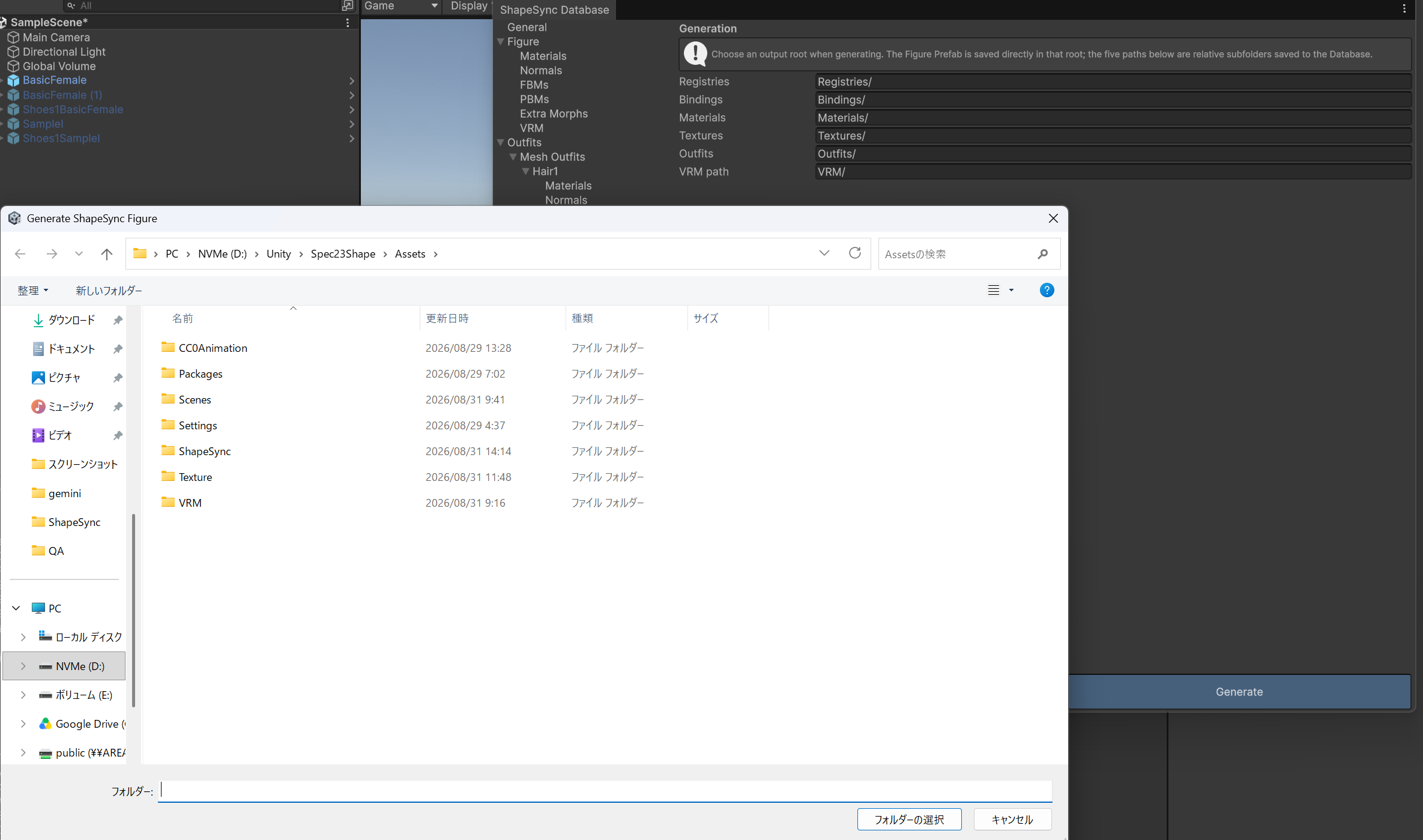 ▲Figure 9-4: Clicking Generate in Generation section, selecting output root folder, and executing regeneration
[!NOTE] About Automatic Post-Processing: Expression Bake (creating VRM Expression data for generated Figure from shared Expressions of Base and all FBMs) and Physics Transfer (transferring SpringBone physics data to generated Prefabs of Figure and each Mesh Outfit) are batch-processed as automatic post-processing upon executing
Generate. There is no need to click individual Bake buttons or open dedicated windows.
5. Verifying Facial Expressions (Expression) in Play Mode
After Generate is complete, verify independently in Play Mode whether facial expressions (Expression) operate correctly.
- Select the generated Figure (
BasicFemale) placed in the Scene. - Press Unity’s Play button to enter Play Mode.
- Select Figure in the Hierarchy, and check the
UniversalExpressionProxycomponent in the Inspector. - From the
Expressionslist, enable theOncheckbox for the facial BlendShape row you wish to check (e.g.VRM_happy). - Drag and move the
Weightslider (0.0to1.0) for that row. - Observe the character’s face in the Game view, and confirm that facial expressions (smile, eye and mouth movements) change in real time in response to slider operations.
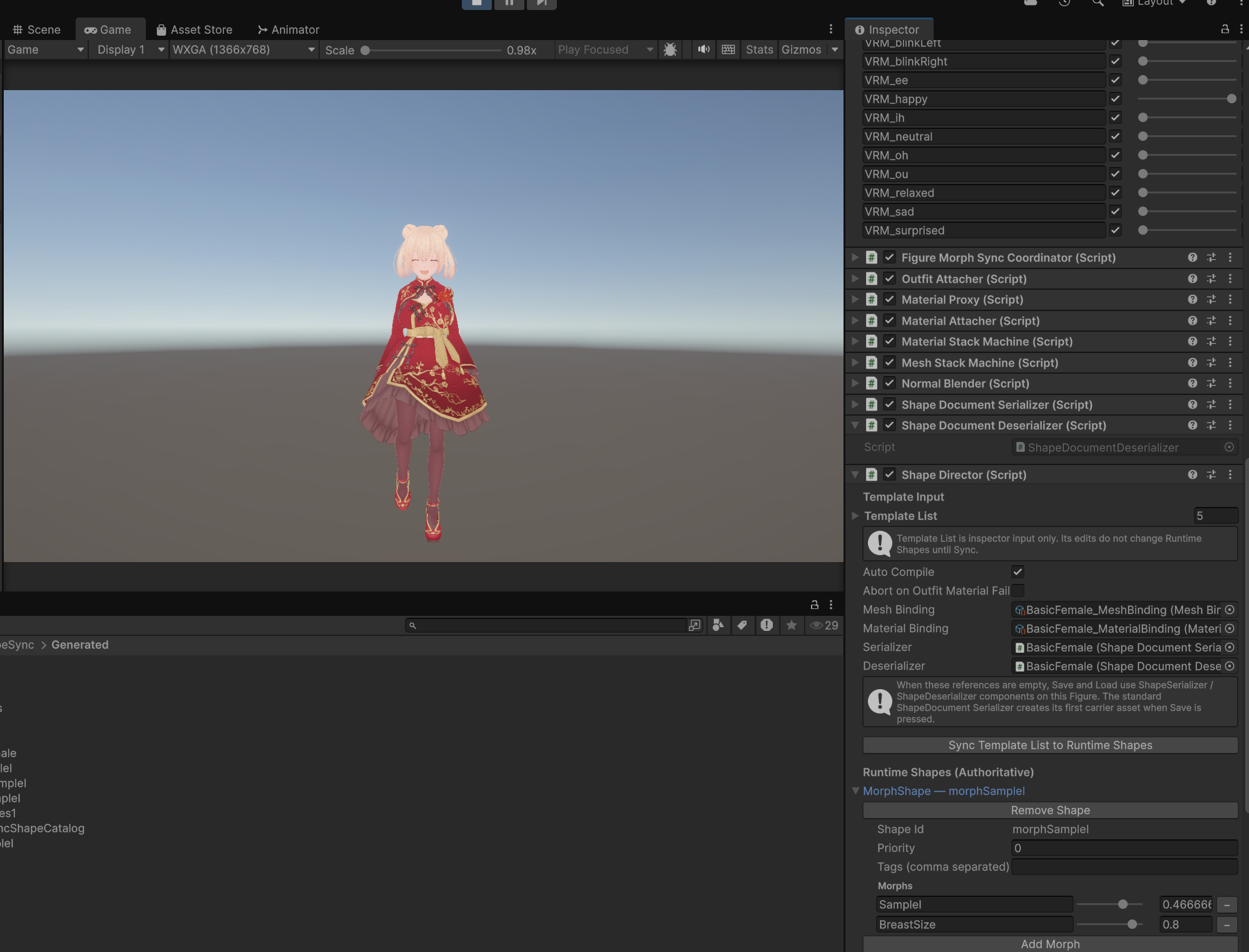 ▲Figure 9-5: Enabling VRM_happy in UniversalExpressionProxy during Play Mode and confirming facial change to a smile via Weight slider
6. Verifying Secondary Motion (Physics) in Play Mode
Next, verify independently whether secondary motion (Physics / SpringBone) for hair and outfits follows character movement.
- Confirm that
Hair1andDress1are attached to Figure, and thatWalking.controlleris set inAnimator. - Play the walking animation while remaining in Play Mode.
- Enable Gizmos in the Scene view to display SpringBone colliders and physics gizmos.
- In response to the character’s walking motion, confirm that the twintails and hair tips of
Hair1and the skirt hem and cloth edges ofDress1naturally sway with a slight delay relative to body movement, and that physics simulation is actively tracking character footsteps.
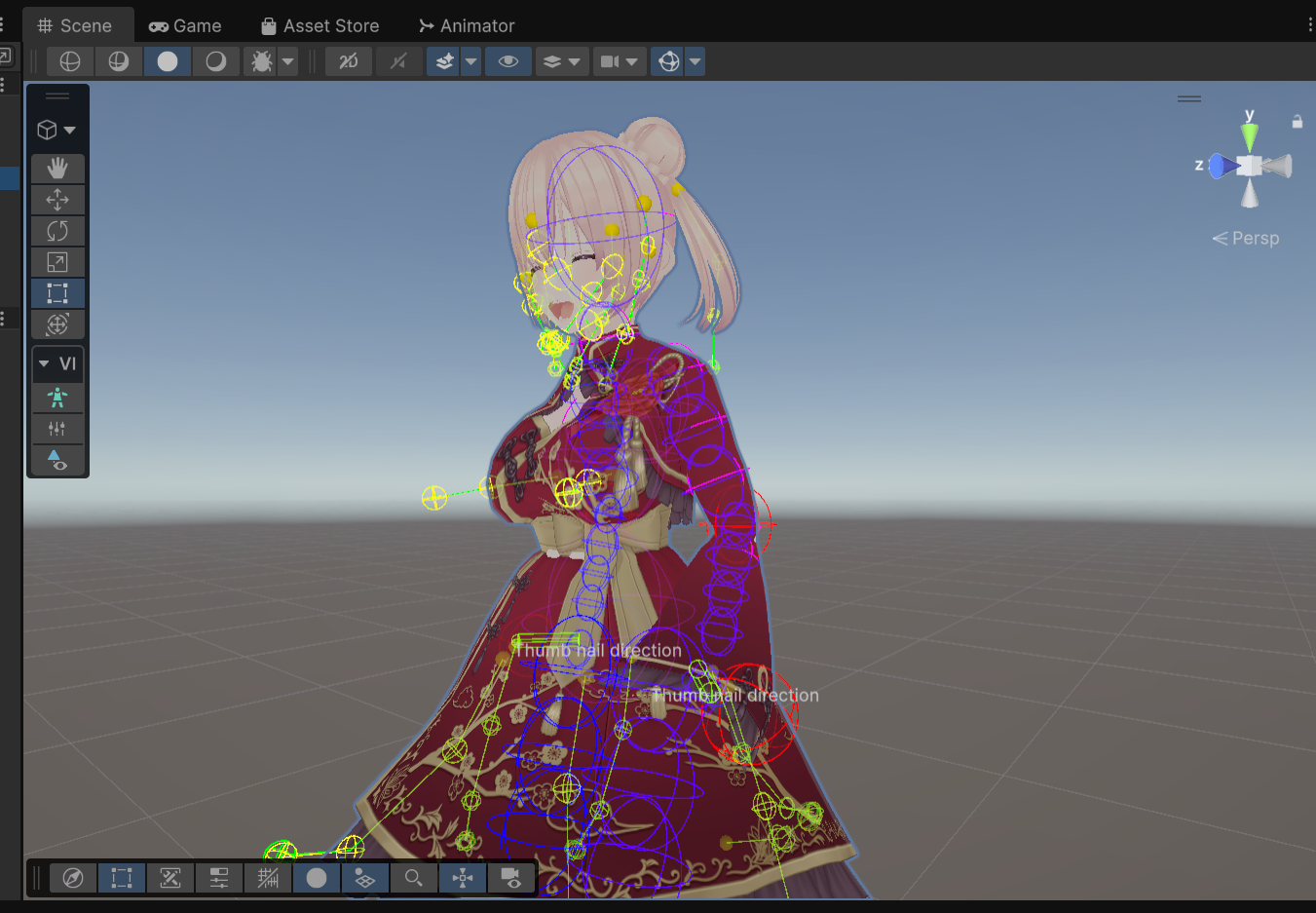 ▲Figure 9-6: Confirming that hair tips and dress hem naturally sway and follow along with SpringBone gizmos during walking animation playback in Play Mode
7. Common Issues and Solutions (Troubleshooting)
Q1. The VRM section does not appear in ShapeSync Editor, or an error occurs
- Cause:
- UniVRM packages (
com.vrmc.gltf,com.vrmc.vrm) or ShapeSync VRM Integration Companion may not be installed properly. SHAPESYNC_USE_UNIVRMmay not be set under Scripting Define Symbols inProject Settings > Player > Other Settings.
- UniVRM packages (
- Solution:
Review the installation procedures in Chapter 1, install the necessary packages, and add and apply the
SHAPESYNC_USE_UNIVRMsymbol.
Q2. Facial expressions do not change when operating UniversalExpressionProxy in Play Mode
- Cause:
- You may not have clicked
Save to Databaseafter setting Expression Reference VRM inFigure > VRM, or you may not have re-executedGenerateinGenerationafter configuration. - The
Oncheckbox for the corresponding expression row in theUniversalExpressionProxyInspector may not be enabled.
- You may not have clicked
- Solution:
Confirm that Base and FBM VRMs are properly saved in
Figure > VRM, and re-executeGenerate. In Play Mode, always checkOnbefore operating theWeightslider.
Q3. Hair or dress secondary motion does not move during walking
- Cause:
- After specifying and saving Physics Reference VRM in the
VRMsection ofOutfits > Mesh Outfits > Hair1orDress1, you may not have re-executedGenerate.
- After specifying and saving Physics Reference VRM in the
- Solution:
Confirm that Physics Reference VRM is saved in each Outfit’s
VRMsection, and re-executeGeneratein theGenerationsection.
← Back to Tutorial Index | ← Chapter 8: Advanced Outfit Registration and Figure Mask (Hiding Base Mesh and Correcting Poke)